I had to completely rewrite a massive, 5,000-line global stylesheet from scratch in 2019 because the original developer stubbornly used raw, hardcoded hex codes for absolutely everything, and the client suddenly demanded dynamic, adjustable opacity on all of their primary interactive buttons. It was a completely avoidable disaster.
You physically cannot append an alpha channel (transparency) to a standard 6-character hex variable easily in vanilla CSS without relying on cutting-edge features. Historically, you had to manually convert the hex string to an RGB value. Understanding exactly how that mathematical conversion works under the hood is critical for debugging complex design systems.
The Base-16 math explained simply
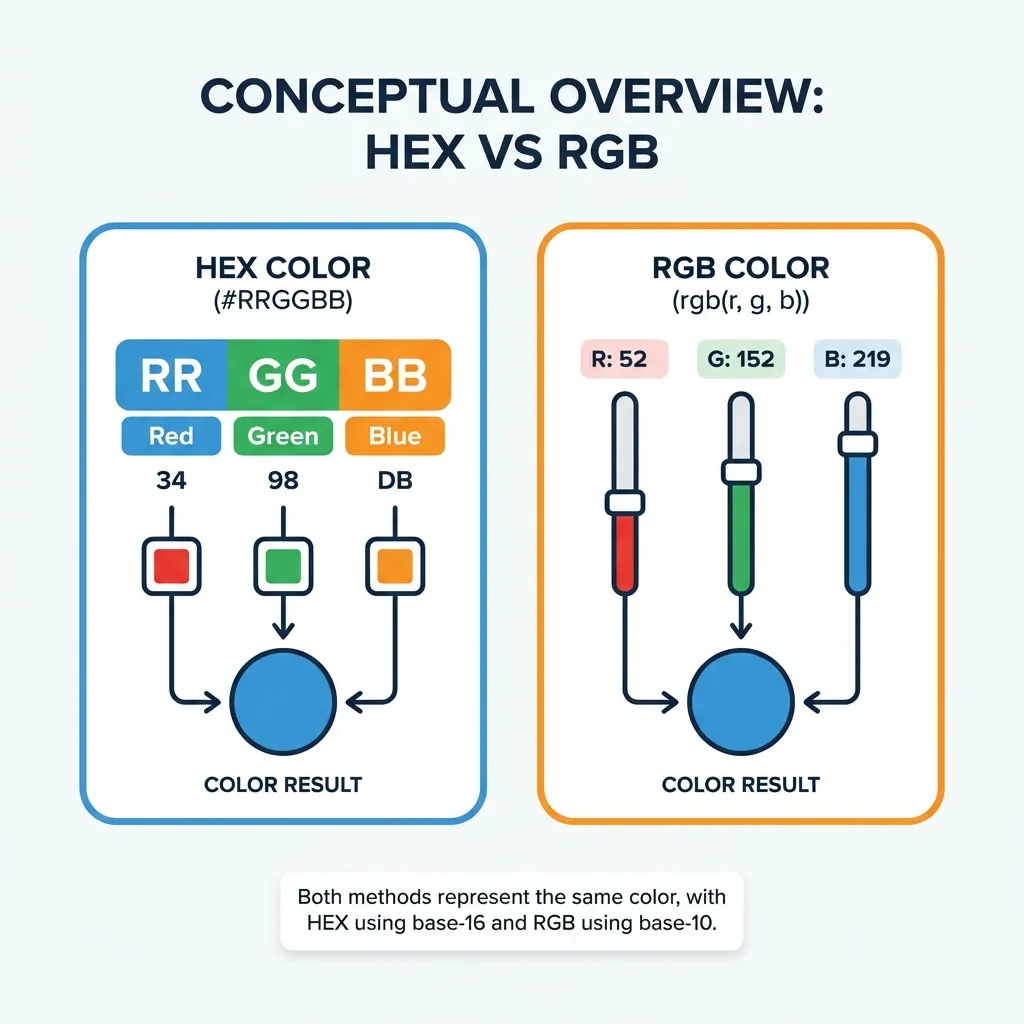
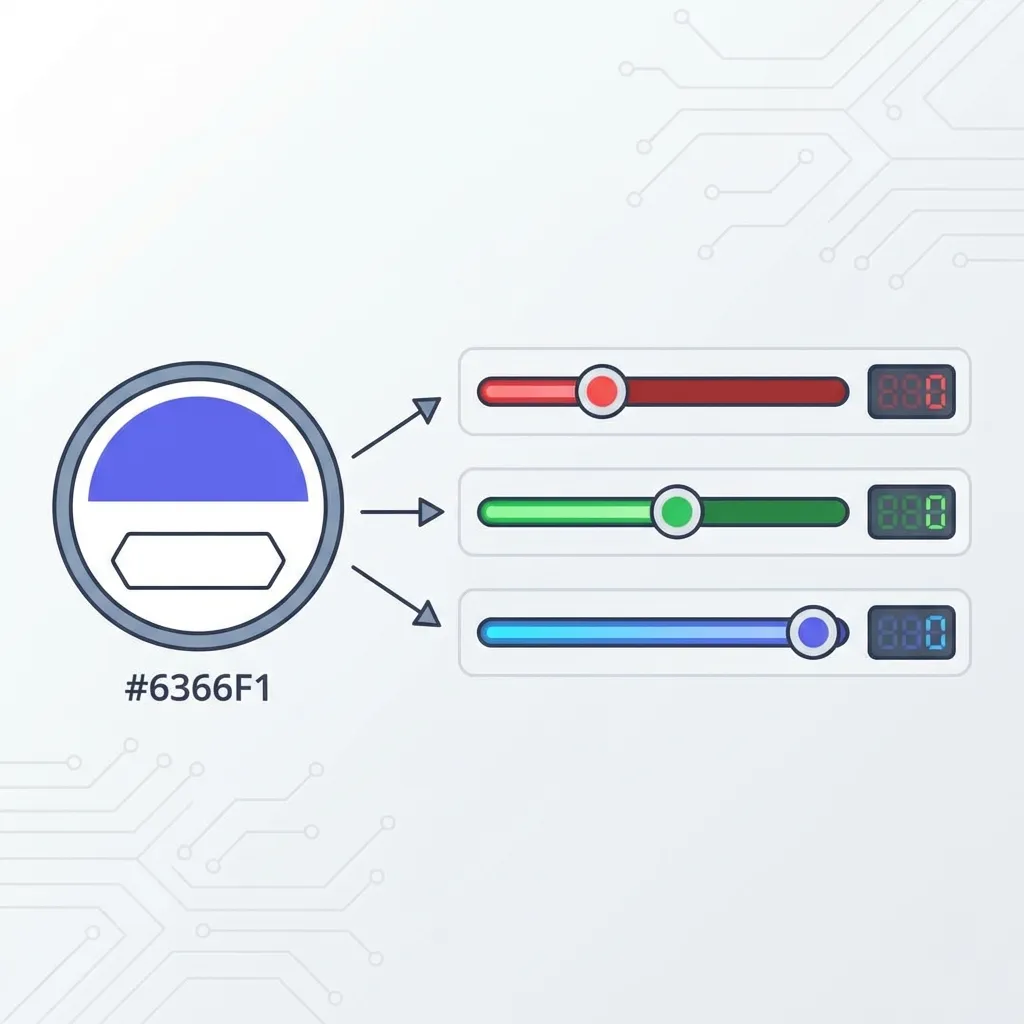
Hex is short for hexadecimal. The hexadecimal numbering system counts from 0 to 9, and then uses the letters A through F to represent the numbers 10 through 15. The letter F is the maximum possible value (15). A standard hex code like #FF0000 is simply three distinct pairs of these Base-16 numbers: Red (FF), Green (00), and Blue (00).
To convert the first pair (FF) to standard Base-10 RGB math, you simply multiply the first digit by 16 and add the second digit. Since F is 15, the math is: 15 × 16 = 240. Add the second F (which is also 15), and you get 255. That's it. That is the entire secret. The hex code #FF0000 is mathematically identical to rgb(255, 0, 0). I think it is absolutely ridiculous that high-priced coding bootcamps don't teach this basic conversion math on day one of CSS instruction.
However, there's no clean solution to doing this math accurately in your head for weird, complex colors like #4A90E2; the mandatory workaround is using an automated converter tool or letting the browser handle it. If you try to manually calculate that A is 10 and E is 14 while under a deadline, you will make a mistake and ship the wrong color.

Why you shouldn't do this manually
The dumb solution that works perfectly every single time is just dropping your hex code into Chrome DevTools. You inspect any element, click the little colored square swatch next to the hex code in the Styles pane, and hold the Shift key while clicking the format toggler. It instantly, flawlessly cycles from Hex to RGB to HSL. No manual math required. It is the fastest workflow available.
(I actually built the specific hex converter tool on this website because I got so incredibly tired of constantly opening a blank Chrome DevTools window just to translate a client's static PDF brand guide into usable CSS variables for a new project.)
The modern CSS variable workflow
If you are building a modern application using CSS variables (custom properties), you must plan for transparency from the very beginning. If you define --brand: #4A90E2; at the root level, you are trapped. You cannot easily make it 50% transparent later.
The historical best practice was to store the raw RGB integer string instead of the hex code: --brand-rgb: 74, 144, 226;. This allowed you to write rgba(var(--brand-rgb), 0.5) anywhere in your application, dynamically injecting the alpha channel at runtime. It worked, but it was incredibly annoying to read and maintain.
Today, the landscape has completely shifted. You can define your standard hex code (--brand: #4A90E2;) and use the native color-mix() function to handle the conversion and transparency application dynamically. You simply write color-mix(in srgb, var(--brand) 50%, transparent). The browser engine handles the complex hex-to-rgb conversion and alpha math internally, entirely eliminating the need for you to do Base-16 calculations or maintain ugly RGB string variables.