The first website I ever built had a navbar I was quietly proud of. The color was #3b5998. That is Facebook's blue, lifted shamelessly from their 2008 homepage because I didn't know any other blues existed. I didn't know what the hash mark meant. I certainly didn't know why it was six characters long. I copy-pasted it, threw it into my stylesheet, and told myself I was a designer.
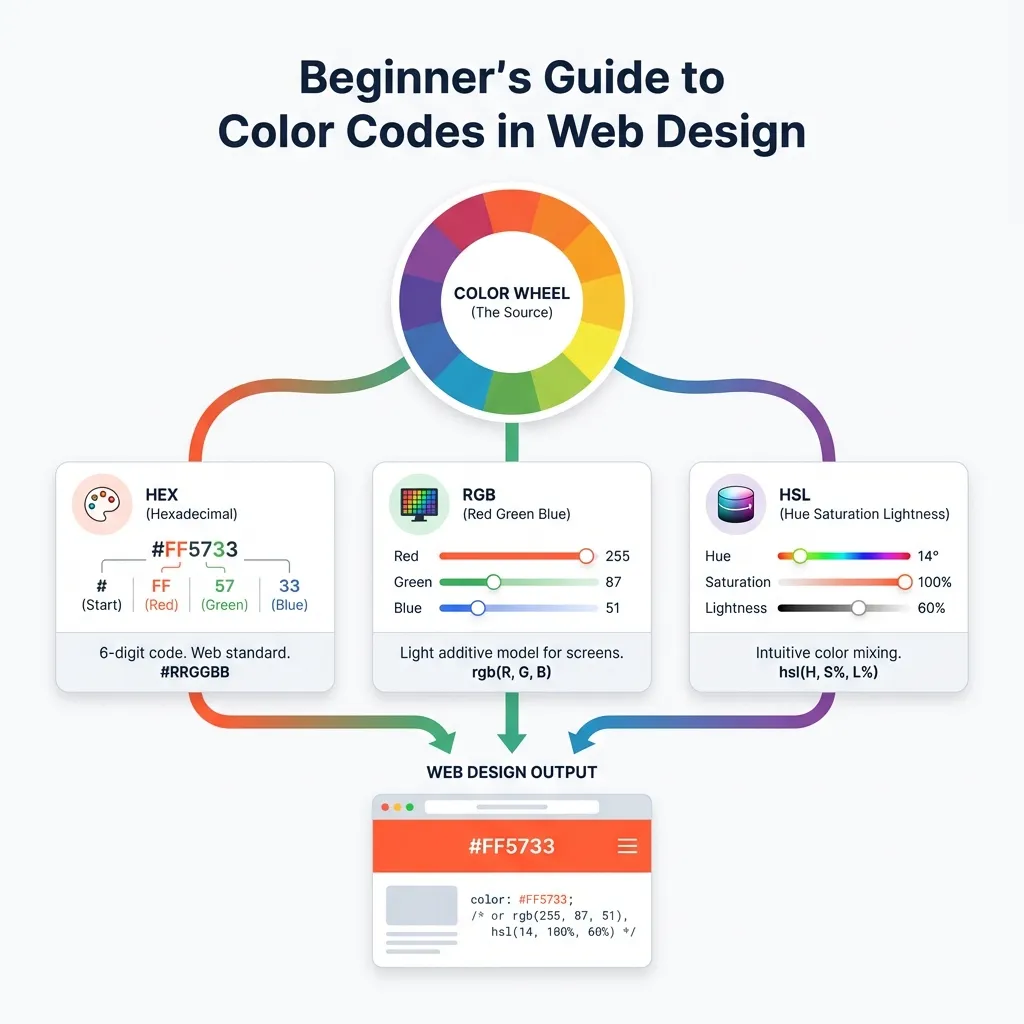
If you're currently pasting color codes without really knowing what the characters mean, this is the exact explanation I wish I'd read that week. You don't need a math degree to style a webpage. There are really only three color systems you'll actually use on the web today: Hex, RGB, and HSL. They all describe the exact same color, just in different outfits.
Hex is the absolute default
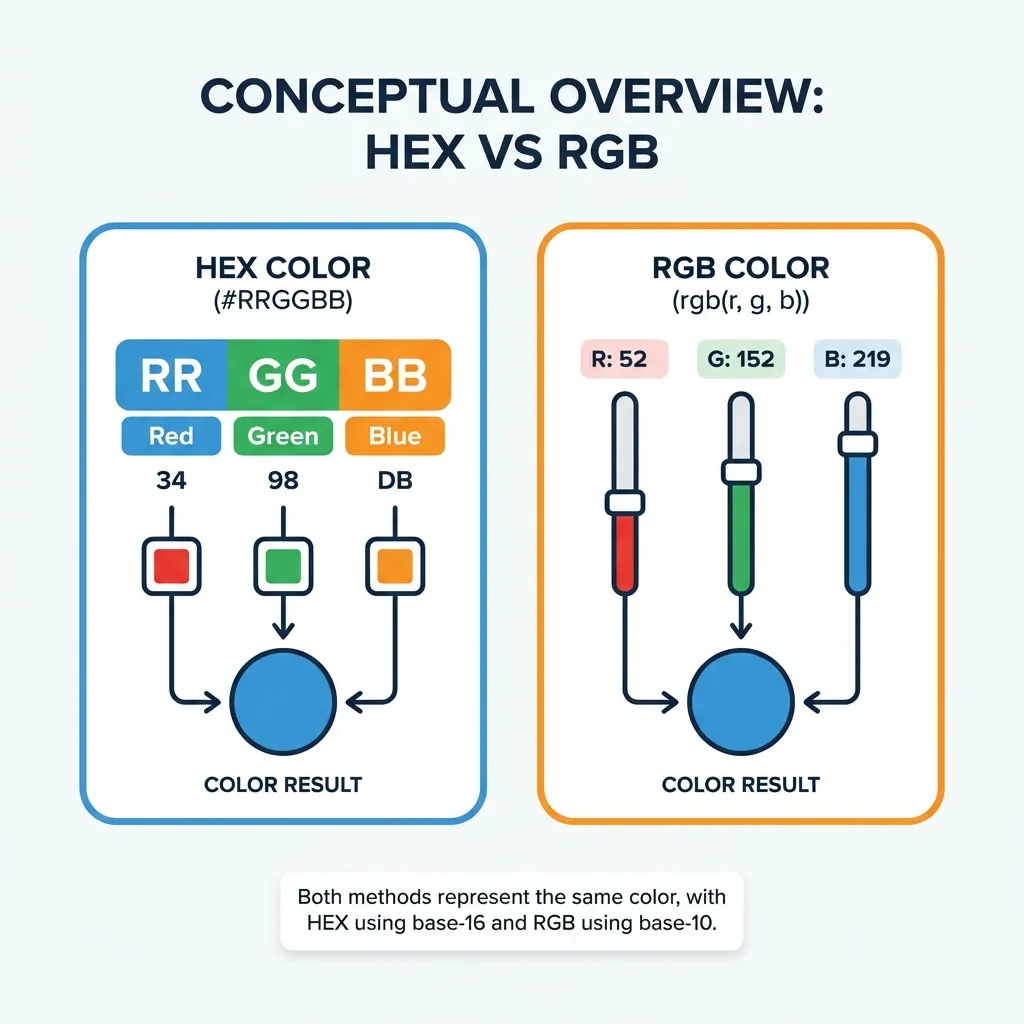
Hex is short for hexadecimal, which is base-16 math. We normally count from 0 to 9. Hexadecimal counts from 0 to 9, and then uses letters A through F to represent 10 through 15. In a Hex code like #2d7ef7, the characters aren't random gibberish. They are three distinct pairs of values controlling Red, Green, and Blue light.
The first pair 2d is the red light. The second pair 7e is the green light. The final pair f7 is the blue light. If you turn all the lights off by typing #000000, you get pitch black. If you crank them all to maximum power by typing #ffffff, you get blinding white.
I think most developers stop learning right here. They grab a hex code from Figma, paste it into their CSS, and call it a day. That works perfectly fine if you are building a static blog. But picking colors like this breaks down the absolute second you need an overlay, a shadow, or an interactive hover state. Hex codes are rigid. They don't want to be manipulated.
RGB for solving transparency
RGB spells things out explicitly. Instead of relying on base-16 math, you get three standard numbers from 0 to 255. Writing rgb(45, 126, 247) gives you exactly the same bright blue as #2d7ef7.
The killer feature of RGB is the alpha channel. Adding a fourth value between 0 and 1 makes the color semi-transparent. I use rgba(0, 0, 0, 0.6) constantly for dark modal overlays. If you try to build a modal without transparency, it looks like a cheap popup from 1999.
Modern CSS allows you to write this with spaces instead of commas: rgb(0 0 0 / 0.6). (I still use the older comma syntax out of habit, even though the CSS Color Module Level 4 spec technically prefers spaces now.) There is technically an 8-digit hex format that supports opacity, like #00000080, but no normal human being intuitively knows that 80 in hexadecimal means 50 percent opacity. Stick to RGBA when you need to see through a background.
HSL is built for human brains
HSL stands for Hue, Saturation, and Lightness. Instead of asking you to mix red and green light in your head, you pick a spot on the standard color wheel. That is your Hue, ranging from 0 to 360 degrees. Then you decide how vibrant it should be. That is your Saturation, from 0% to 100%. Finally, you decide how bright it is. That is your Lightness, from 0% to 100%.
This is my favorite format for UI design by a wide margin. If I have a base primary button color at hsl(215, 92%, 57%) and I need a darker hover state, I don't need to open a calculator. I just drop the lightness value to 40%. The hue and saturation stay permanently locked. It mathematically guarantees the colors belong to the exact same family.
Three mistakes that ruin interfaces
Using #000000 for body text is the most common error I see in junior portfolios. Pure black on pure white produces a 21:1 contrast ratio. It is harsh enough to cause literal eye strain during long reading sessions. Switch your text to an off-black like #1a1a1a and your users' eyes will thank you. You are still well above the minimum accessibility requirements.
Another classic mistake is picking a brand color without actually checking the math. A mint green like #8cd9b6 looks fantastic on a Dribbble mockup. If you put white text on it, the contrast crashes to an abysmal 1.8:1, rendering it completely unreadable. There's no clean solution for fixing contrast retroactively; the workaround is usually ugly, requiring you to darken your beautiful brand color until it passes WCAG 2.1 checks. Check your contrast before you write a single line of CSS.
Finally, never trust colors extracted from screenshots. A client once sent me a JPEG of their logo embedded in a PDF and said "match this blue." I pulled the hex code directly from the image using an eyedropper tool. The website went live, and the CEO immediately flagged that the blue was dull. JPEG compression literally shifts the RGB values by 3 to 8 digits to save file space. You are sampling compression artifacts, not brand colors. Always ask for the actual hex value from their raw design file.
You don't need to master the math behind all three formats right away. Just know that Hex is for your static brand tokens, RGBA is for shadows and transparency, and HSL is for building scalable design systems. Learn that separation of concerns, and you'll stop guessing.